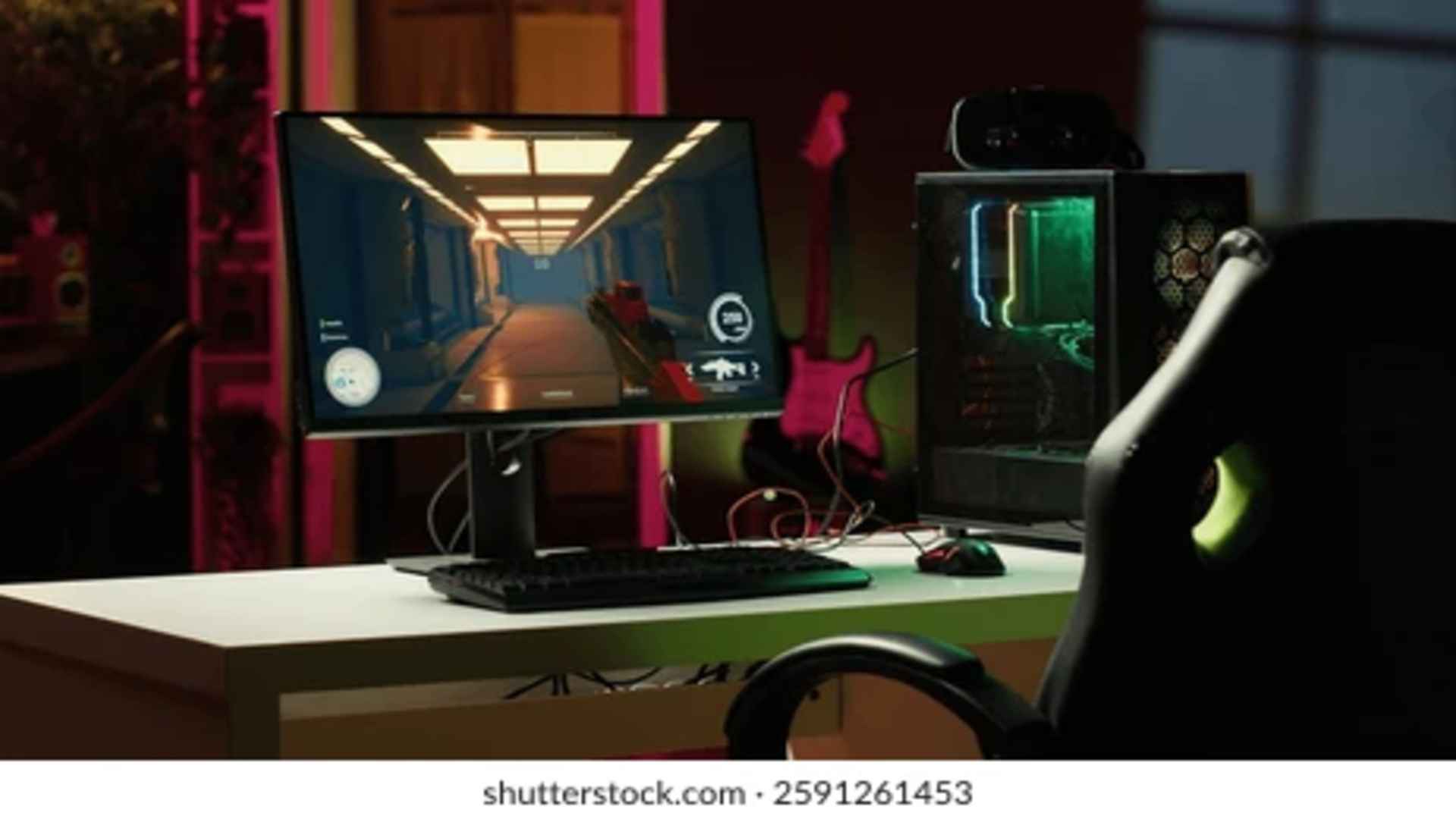
Wallpaper Engine has transformed the way users personalize their Windows desktops by replacing static backgrounds with dynamic, interactive visuals. While these animated layouts offer an immersive aesthetic, there are moments when you need to completely disable the software to reclaim system resources. Knowing how to efficiently navigate the application settings allows you to manage performance spikes during intense gaming sessions or heavy rendering tasks.
Closing the Application via System Tray
The quickest method to temporarily deactivate your animated background involves using the Windows taskbar interface. Navigate to the bottom right corner of your screen and click on the small arrow to reveal your hidden background applications. Locate the distinct monitor icon representing the software, right-click it, and select the quit option to terminate all active processes immediately.
This manual shutdown completely unloads the background graphics from your random-access memory. It ensures that no hidden threads continue running in the background while you focus on hardware-heavy applications. If you prefer to temporarily suspend the visuals rather than shutting down the application entirely, you can choose to pause the rendering from this exact same contextual menu.
Managing Performance and Automation Rules
For a more automated approach, the application features an extensive performance configuration panel that adjusts to your computer usage. Open the primary user interface and click on the gear icon located at the top of the dashboard to open the control panel. Within the performance tab, you will find options that dictate how the software behaves when other applications are active.
You can configure the system to automatically pause or completely unload the live graphics whenever another window is maximized or running in full-screen mode. Setting these parameters ensures that your graphics card allocates its maximum capabilities to your active video games or creative software. This automated method eliminates the need to manually close your desktop enhancements every time you launch a new program.
Disabling High Impact Startup Settings
Many users notice that the software automatically initializes alongside the operating system, which can occasionally slow down your boot times. To change this behavior permanently, open the built-in configuration menu and navigate directly to the general settings tab. At the very top of this menu, you will see a toggle switch labeled start with Windows which controls the automation sequence.
Turning this option off prevents the service from launching until you explicitly choose to open it from your desktop shortcut or Steam library. This adjustment provides a much cleaner operating environment when you first power on your machine. Managing these options allows you to maintain full control over your background environment without experiencing unexpected hardware slowdowns.